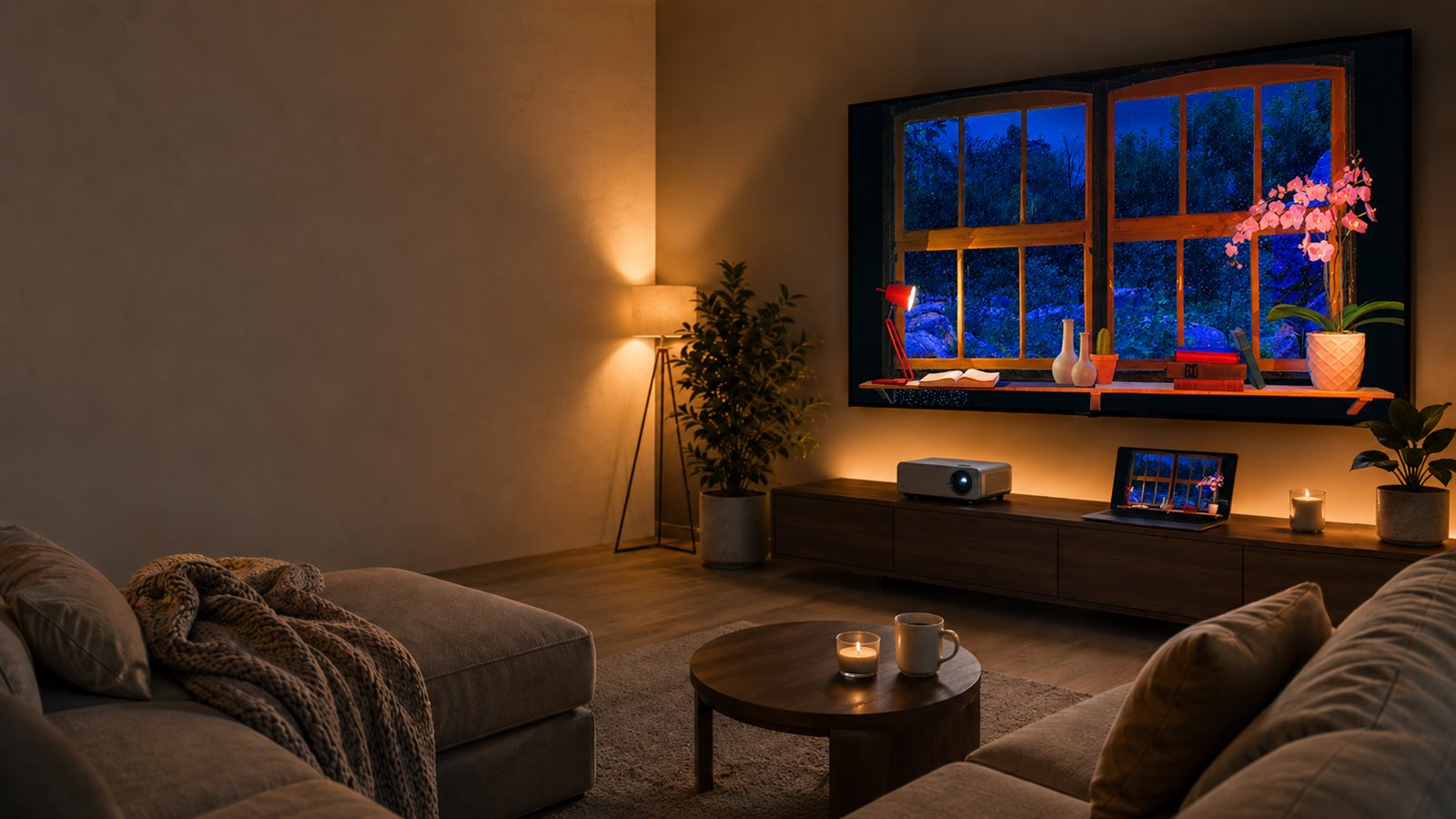
Simple fake window setup

Fake Window Setup Guide: TV, Projector, YouTube and Cables Made Simple

Set up a fake window at home without technical stress. Use a TV, projector, HDMI cable, YouTube app or streaming device to watch calming ambience videos.

Start simple

The simplest setup is usually the best one.

If you already have a TV with YouTube, start there.

If you want a larger immersive wall, use a projector.

If you feel lost with cables, use one HDMI connection and keep everything simple.

Quick comparison

Five simple fake window setups

Use this table to choose a calm first test, not a perfect final installation.

SetupBest forDifficultyWhat you need
Smart TV Easiest home setup Easy YouTube app
TV + HDMI Reliable playback from a laptop Easy HDMI cable and TV source/input menu
Projector + HDMI Large immersive wall Medium Projector, HDMI cable, wall or screen
Projector + streaming stick Cleaner setup without a visible laptop Medium Projector with HDMI, Wi-Fi, streaming device
Laptop or monitor Trying the idea before buying gear Easy Browser and YouTube

Easy

I have a Smart TV

A Smart TV is usually the calmest place to start because the screen, speakers and YouTube app are already in the room.
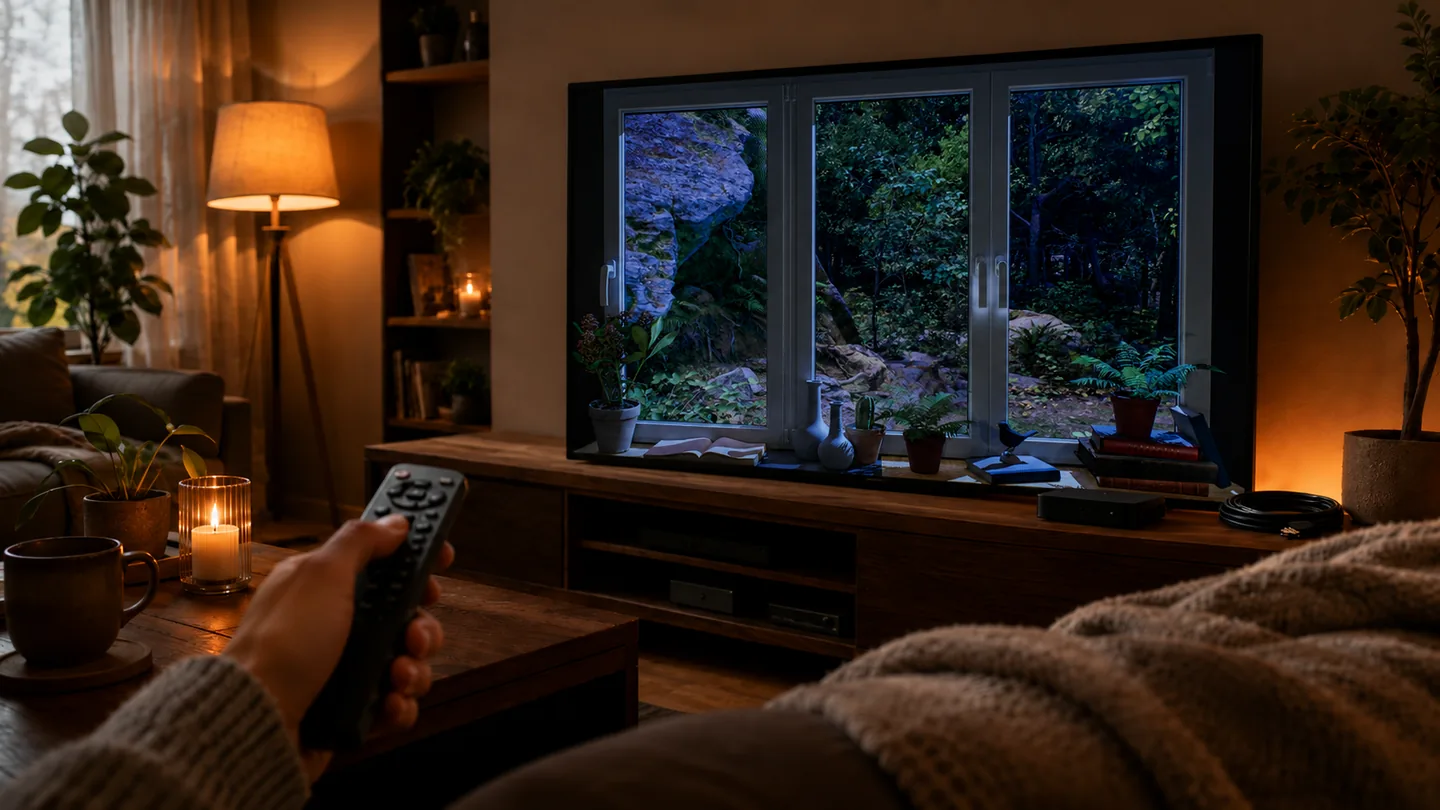
A cozy living room with a smart TV displaying a forest fake window scene
A Smart TV works best when the screen stays subtle, already belongs to the room and is easy to start.
Best for
The fastest home setup
What you need
YouTube app and TV remote

Simple steps

  1. Open the YouTube app on the TV.
  2. Search for Window Ambience Studio.
  3. Choose a long ambience video or playlist.
  4. Lower the brightness if the screen feels too strong.
  5. Keep the sound quiet and natural.
  6. Let the video become part of the room instead of the center of attention.
Easy

I have a normal TV

HDMI is the simplest cable for most fake window setups. It sends image and sound from a laptop, adapter or streaming device to your TV.

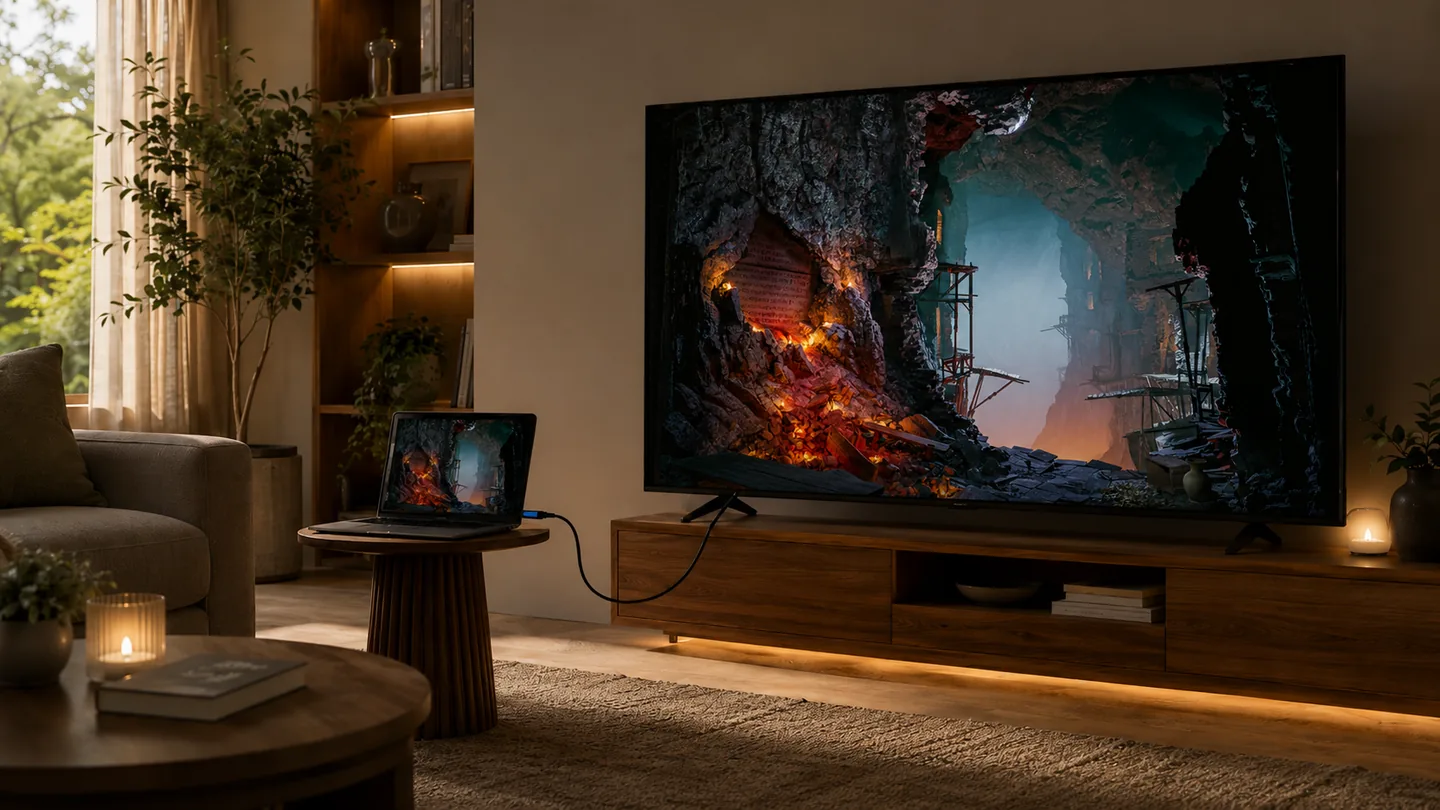
A living room with a regular TV connected by HDMI to a laptop
With a regular TV, a simple HDMI cable is often enough to start calm ambience without complicating the setup.
Best for
Reliable playback from a laptop
What you need
HDMI cable, laptop or adapter, TV source/input menu

Keep it practical

  1. Plug the HDMI cable into the TV and your device.
  2. Use the TV remote to find Source, Input, HDMI 1 or HDMI 2.
  3. Open YouTube on the laptop or streaming device.
  4. Set the laptop to mirror or extend the display if the TV stays blank.
  5. Use the TV volume or a small speaker, whichever sounds softer.

Medium

I have a projector

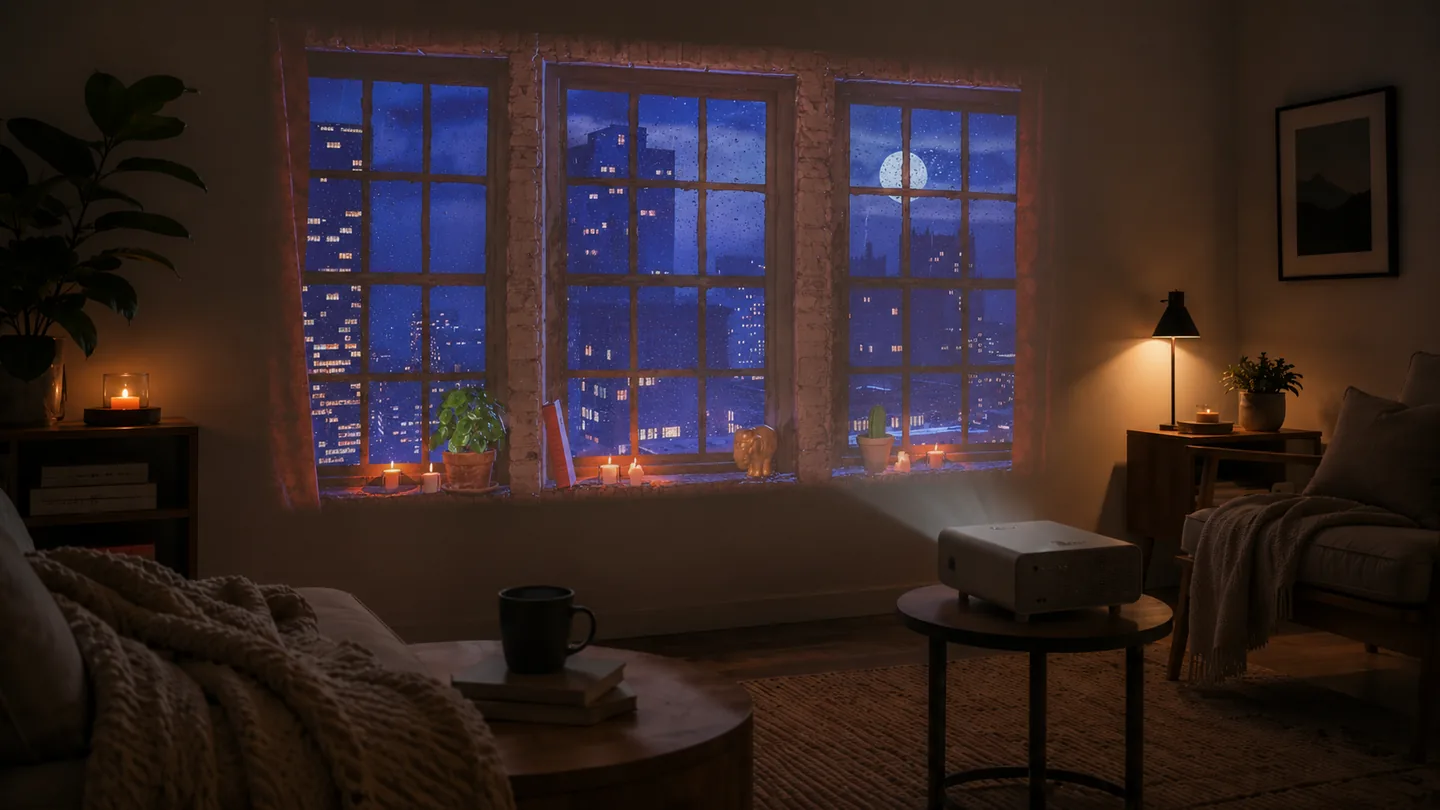
A projector can make the fake window effect feel larger and softer, but it also adds placement, image size, room brightness, keystone correction and fan noise.

A cozy room with a projector casting a fake night window scene onto the wall
A projector feels more believable when the image stays window-sized and the room light remains gentle.
Best for
A large immersive wall
What you need
Projector, HDMI or streaming device, wall or screen

Keep it practical

  1. Start with a moderate window-sized image rather than filling the whole wall.
  2. Move the projector before relying heavily on digital keystone correction.
  3. Reduce nearby light before increasing projector brightness.
  4. If the fan is audible, move the projector farther away or try eco mode.
  5. Use a small external speaker when built-in projector sound feels harsh.

Easy

I only have a laptop or monitor

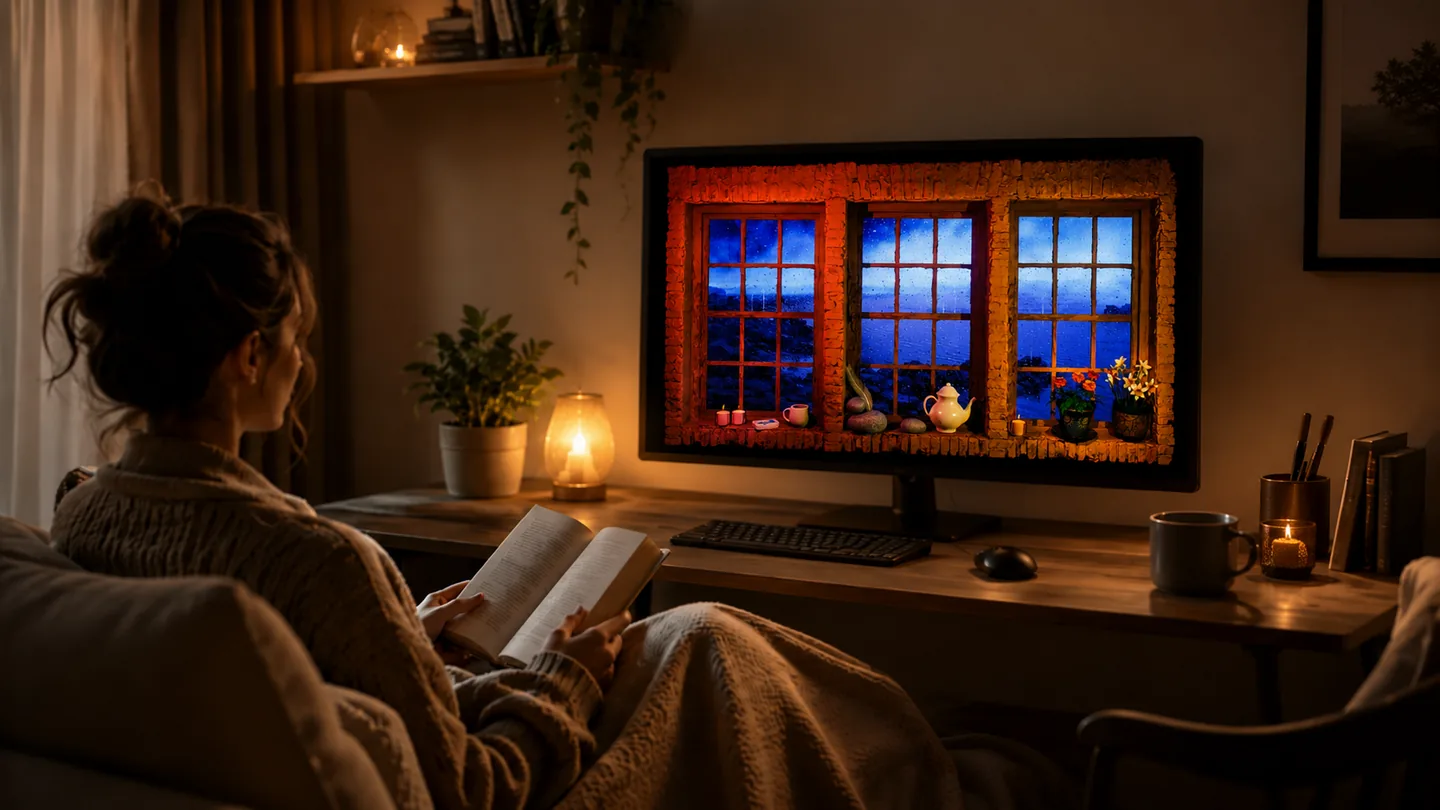
A laptop or monitor is enough to test whether a slow virtual window works for your room, desk or bedside setup.

A person reading in front of a monitor displaying a fake window in a calm room
With a laptop or monitor, a stable image and gentle brightness are often enough to change the mood without buying extra gear.
Best for
Trying the idea before buying gear
What you need
Browser and YouTube

Keep it practical

  1. Choose a stable window-view video with slow movement.
  2. Place the screen to the side of your main task if you are working.
  3. Lower brightness until the screen feels like room ambience, not a second activity.
  4. Mute the video or keep sound very low for reading, study or late evenings.

Medium

I am in an Airbnb or hotel

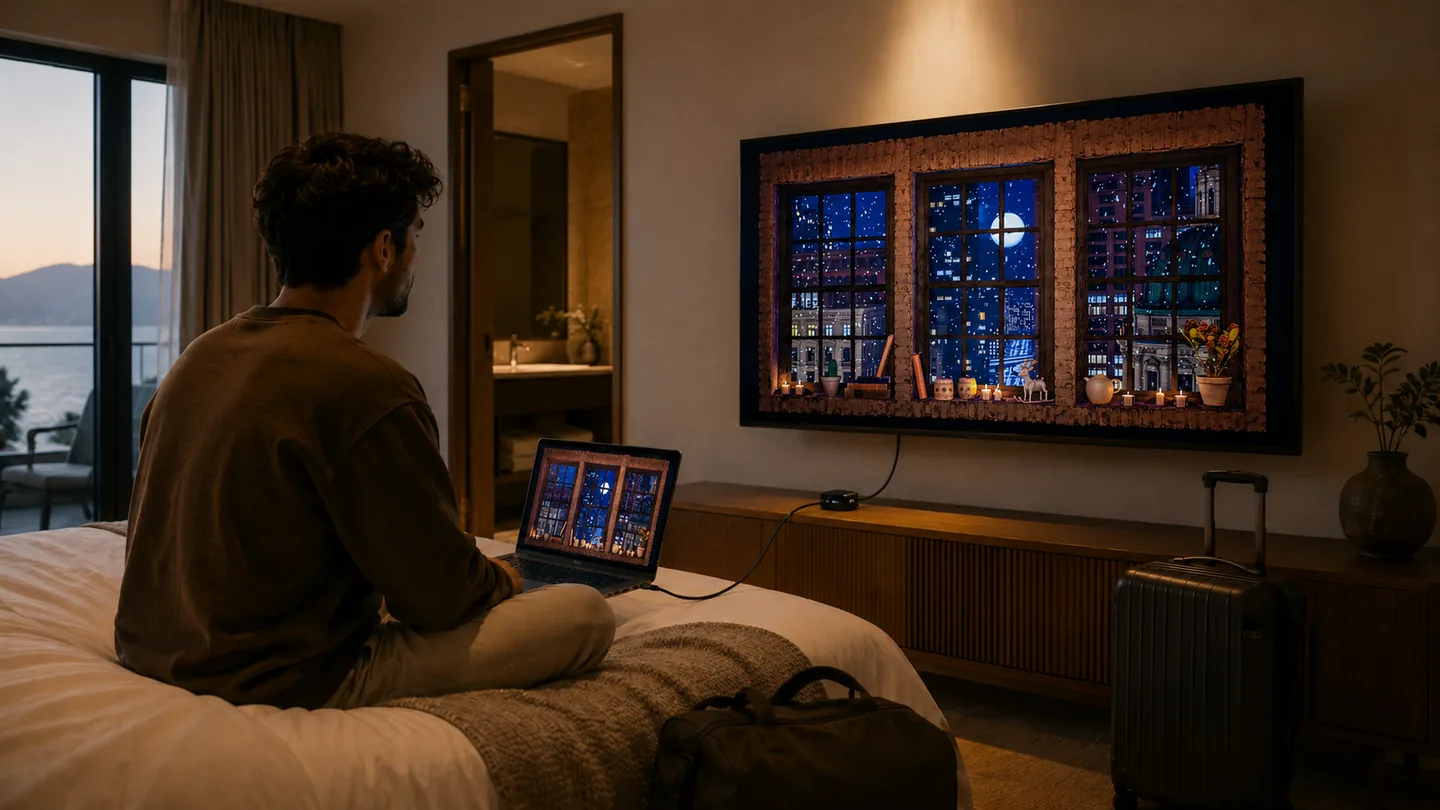
When you use someone else's TV, the goal is simple playback without leaving private accounts behind or depending on a locked TV menu.

A hotel or Airbnb room with a TV connected to a laptop and luggage nearby
In an Airbnb or hotel, using your own device and a simple connection often avoids relying on the TV account or settings.
Best for
Temporary stays and shared screens
What you need
Your own device, cable or casting option, and sign-out discipline

Keep it practical

  1. Use your own laptop, phone, tablet, HDMI cable or casting device when possible.
  2. Avoid signing into the owner account or changing permanent settings.
  3. If you sign in to YouTube, sign out before leaving.
  4. Expect some hotel TVs to block inputs, apps or casting.
  5. Keep a small travel HDMI cable or adapter only if you travel often.

Cables and ports

HDMI, adapters and source menus made plain

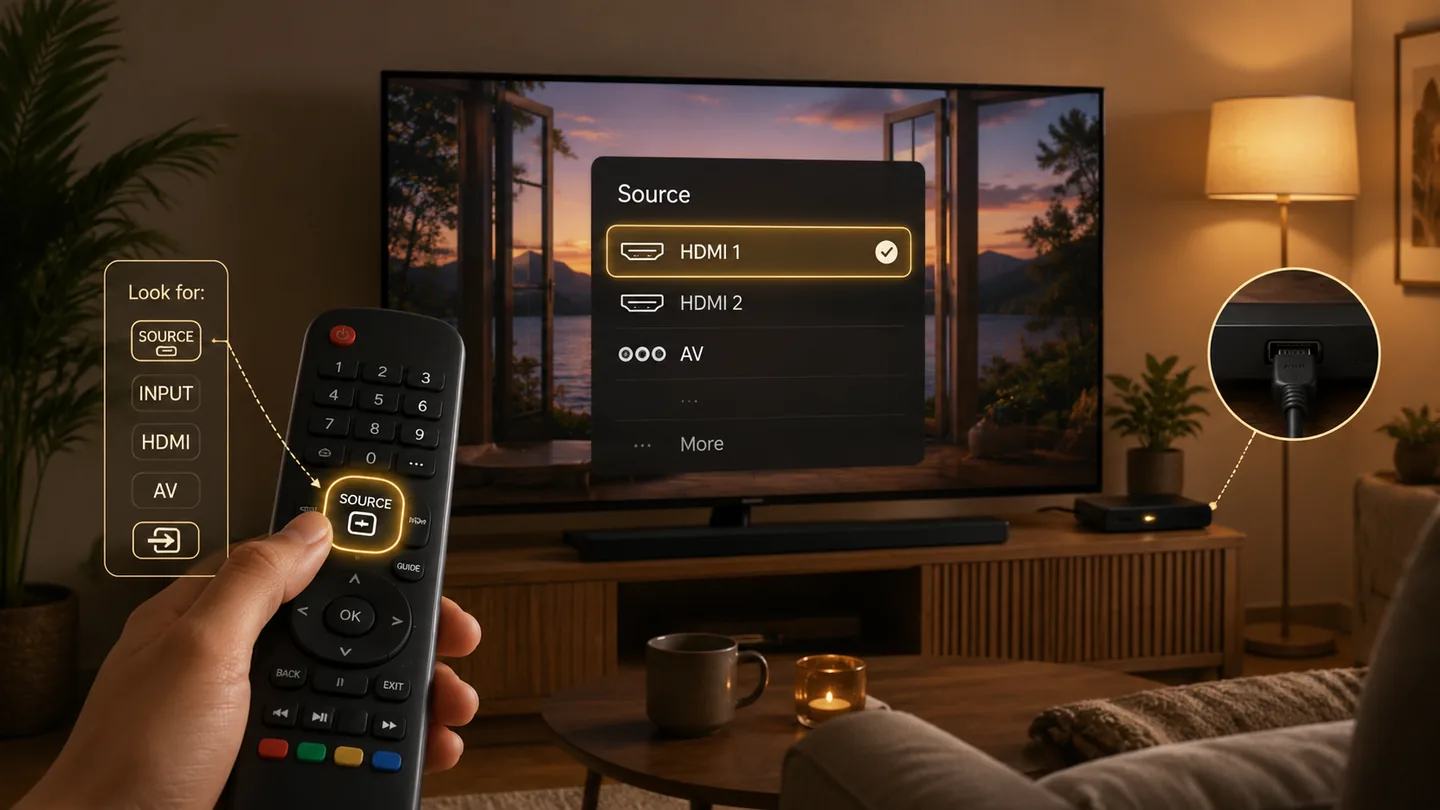
A television showing the HDMI source menu with a remote highlighting the Source button
The most useful step is often finding the Source or Input button on the remote, then selecting the correct HDMI input.

HDMI is the common cable that carries picture and sound from one device to a TV or projector. If your laptop has USB-C instead of HDMI, a USB-C to HDMI adapter can bridge that gap.

A streaming stick can also play YouTube directly through an HDMI port, but it needs Wi-Fi and its own setup. Casting is convenient when it works, but HDMI is usually easier to troubleshoot.

On most TV remotes, the button you need is called Source, Input, HDMI, AV or sometimes shown as an arrow entering a rectangle. Choose the HDMI number where your cable is plugged in.

Common worries

Small setup problems, simple answers

Do I need a 4K projector?

No. A sharper image helps on a large wall, but placement, room light, sound level and the type of video often matter more.

What is HDMI?

HDMI is the common cable that sends image and sound from one device to a TV or projector.

How do I change the source on my TV?

Look for a button named Source, Input, HDMI, AV or an icon showing an arrow entering a rectangle.

Why is my projector image crooked?

Use keystone correction and adjust the projector position. A slightly imperfect rectangle is acceptable for calm ambience.

How can I reduce projector fan noise?

Place the projector farther away, use eco mode if it exists, and keep soft rain, forest or candlelight ambience at a low natural volume.

Should I use built-in projector sound?

It can work for a quick test, but a small external speaker often sounds softer and more natural.

Can I use YouTube in an Airbnb without using the owner account?

Yes. Prefer your own device with HDMI or casting when possible. If you sign in, sign out before leaving.

What should I buy first?

Buy nothing at first if you already have a TV, laptop or monitor. Test the idea, then upgrade only the weak point.

Do I need a projector screen?

Not always. A plain light wall can work. A screen helps if the wall texture, color or reflectivity is distracting.

Can this work in a bright room?

A TV usually works better than a projector in bright rooms. Projection works best with controlled light.

Optional gear checklist

Upgrade only the weak point

Some links may be affiliate links in the future. The goal of this guide is not to push expensive gear, but to help you choose the simplest setup for your room. Start with what you already own whenever possible.

Simple starter kit

Useful only if you do not already have an easy way to play YouTube on your screen.

  • HDMI cable The simplest connection for many TVs and projectors.
  • USB-C to HDMI adapter Useful for many modern laptops and tablets.
  • Streaming stick Helpful when a TV or projector has HDMI but no reliable YouTube app.
  • Small external speaker Often softer than built-in projector sound.

Projector comfort kit

Consider these only after the basic projection already works in the room.

  • Adjustable stand Makes height and angle easier to repeat.
  • Longer HDMI cable Lets the laptop or source sit away from the projector fan.
  • Blackout curtains More useful than extra brightness when room light washes out the image.
  • Compact screen Useful when wall texture or color distracts from the view.

Airbnb and travel kit

Keep this compact and optional; many stays work better with your own laptop or tablet.

  • Travel HDMI cable A simple fallback when casting is blocked or unreliable.
  • Adapter pouch Keeps USB-C, HDMI and power adapters together.
  • Compact speaker Gives softer sound without using a shared TV account.
  • Streaming stick Useful only when Wi-Fi and the TV input are both available.

A fake window does not need a perfect setup to feel useful. Try one screen, one video and one quiet adjustment at a time. If the room feels calmer, the setup is already doing its job.

Watch Window Ambience Studio on YouTube